Balancing Robot

Over a year ago I started to work on a small balancing robot. Between learning more about communication protocols and feedback loops I also had periods of schoolwork that kept me from this hobby. In the end my little robot was balancing on his own and I could send steering and throttle commands wirelessly.
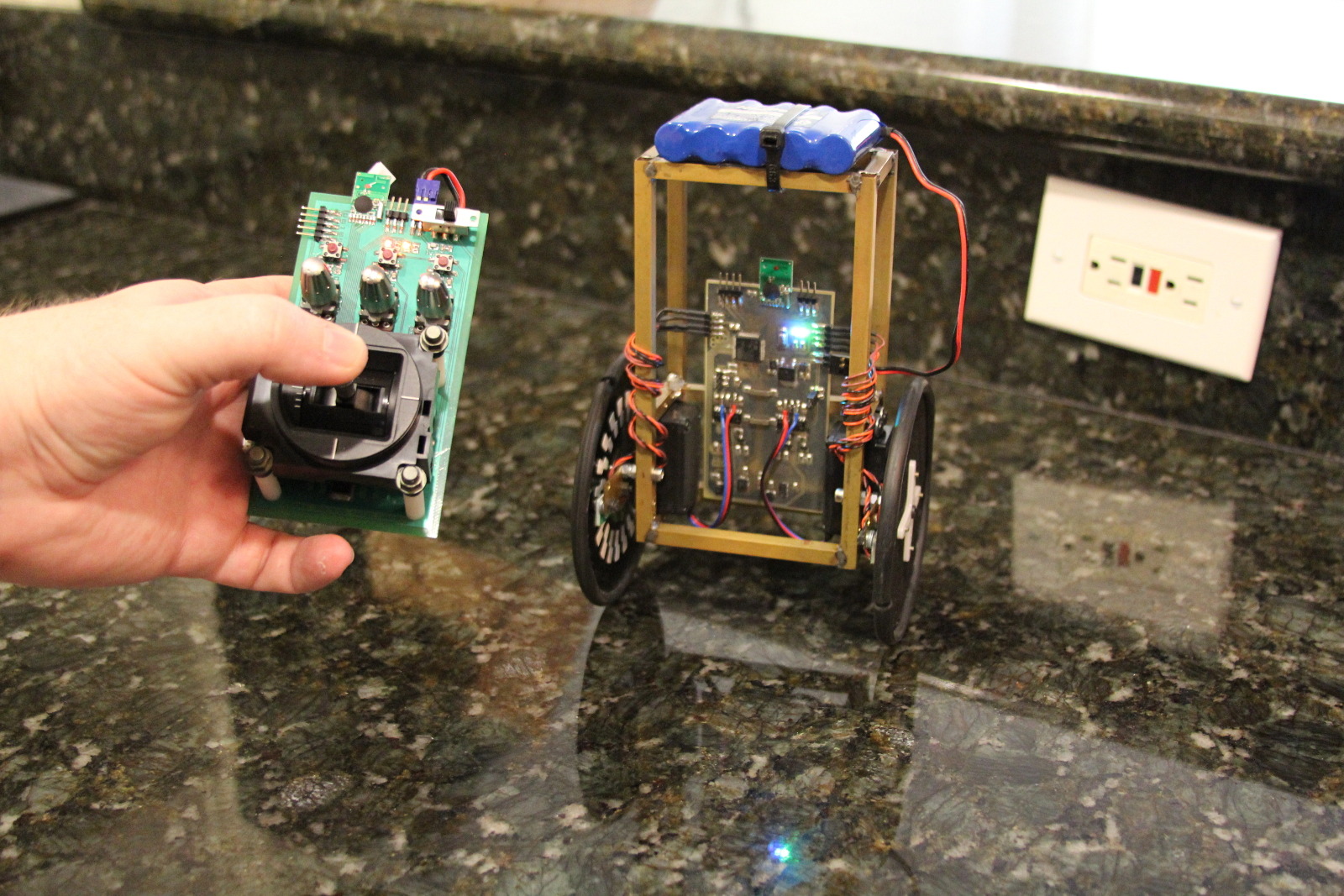
This project marked many firsts for me. It was the first time I made use of my microcontroller's I2C, UART and ADC peripherals. It was the first time I heard about PID control loops. It was also the first time I used an RF module to communicate wirelessly.

As I progressed I took several photos and video clips when milestones were met.

During the planning stage I selected a 3-axis gyro and a 3-axis accelerometer. I settled on STM's L3GD20 and LSM303DLHC devices. I laid out and etched a breakout board for them, then wrote a little Hello World test to draw bar graphs for the gyro readouts.

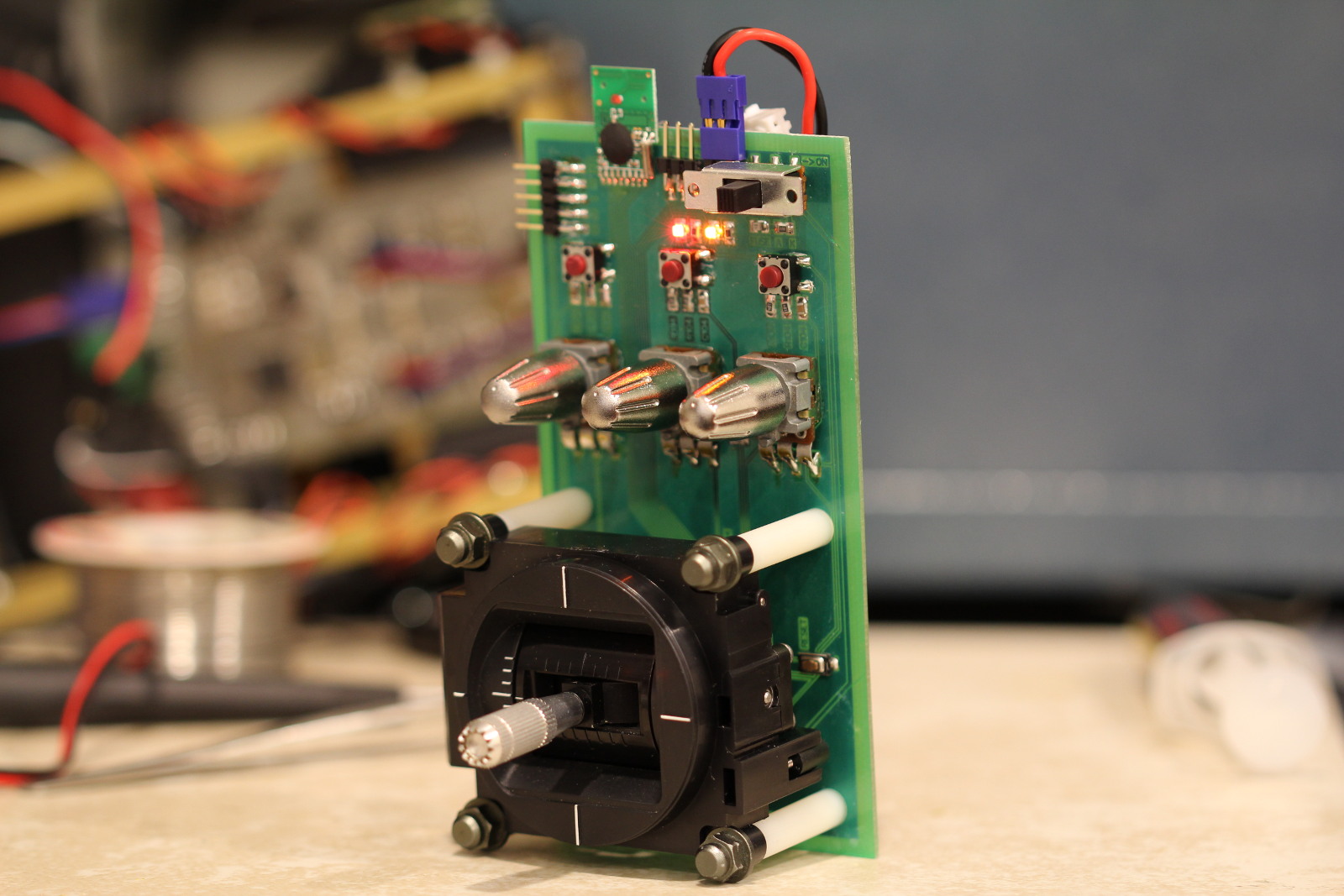
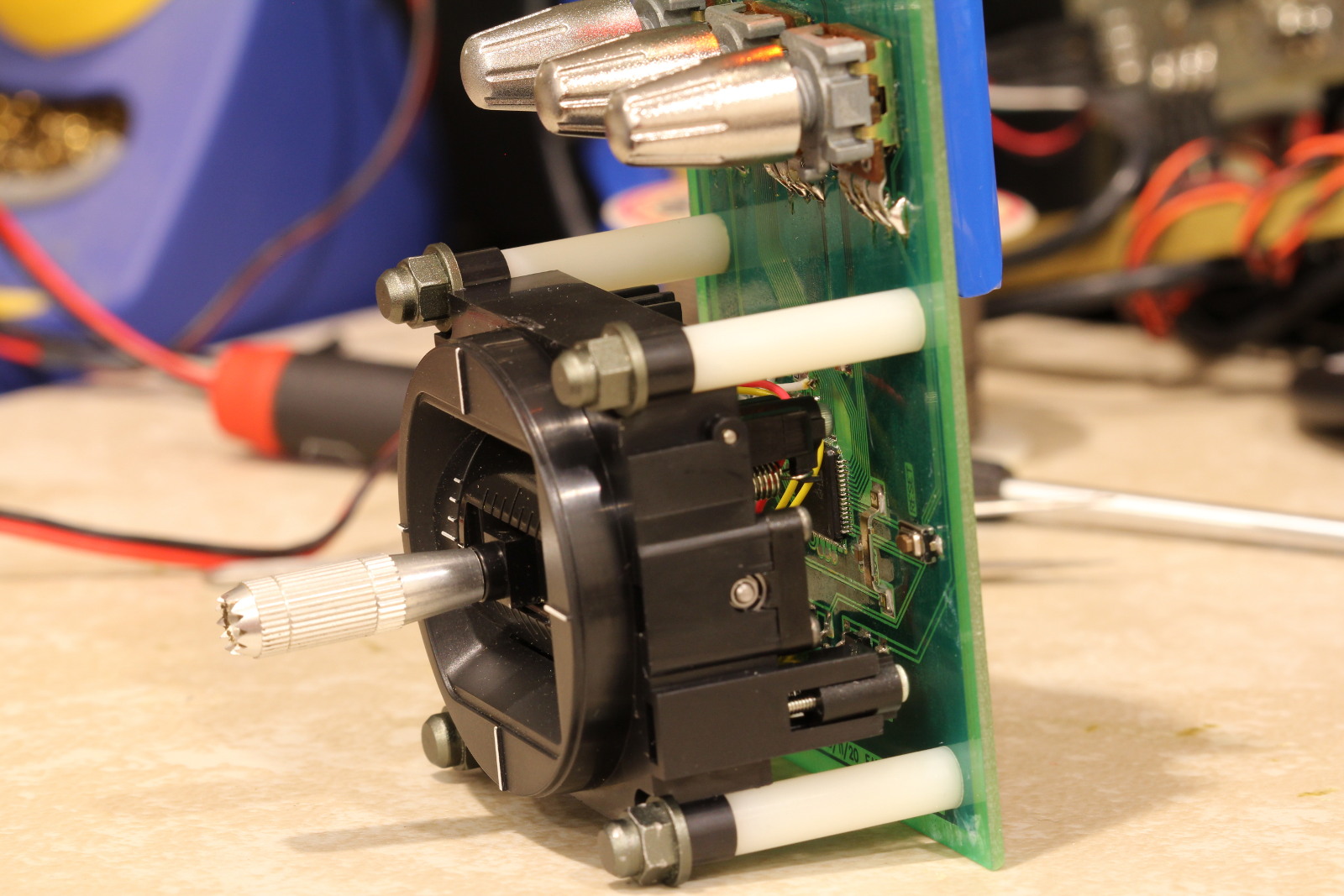
I decided to use a pair of RC hobby servos to power the robot. I removed the feedback potentiometers and modified the output gears to allow for continuous rotation. Some steering wheels from RC hobby transmitters were initially used as the wheels. The robot frame was constructed with some brass square tubing cut to length and soldered together. A gimbal was used for steering and throttle inputs since I didn't want to dive into the 2.4GHz module's lengthy datasheet until the end.

The wheels quickly proved to be a problem. While they had great traction, their diameter was far too small. The robot could easily drift a little too much, and the servos at full power couldn't spin fast enough to overcome the drifting.

I went with larger diameter wheels, making it much easier for the robot to balance:

The robot was actually drivable at this point. I added optical wheel encoders to make it easier to sense when the robot started to drift off course. Without the encoders the robot could drift if the driving surface wasn't perfectly level. By now the little guy was a mess of breakout boards, flying wires and extensions.
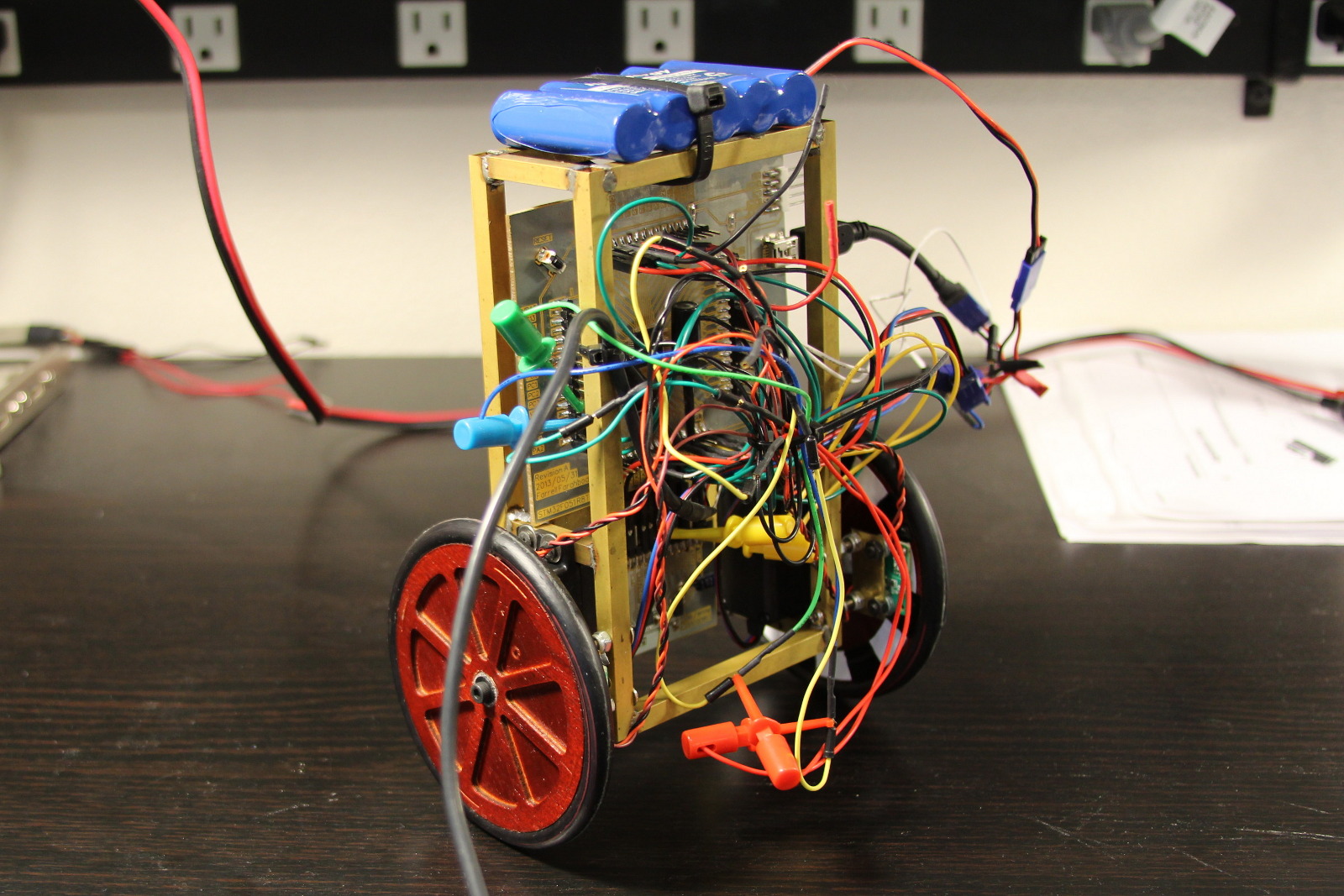
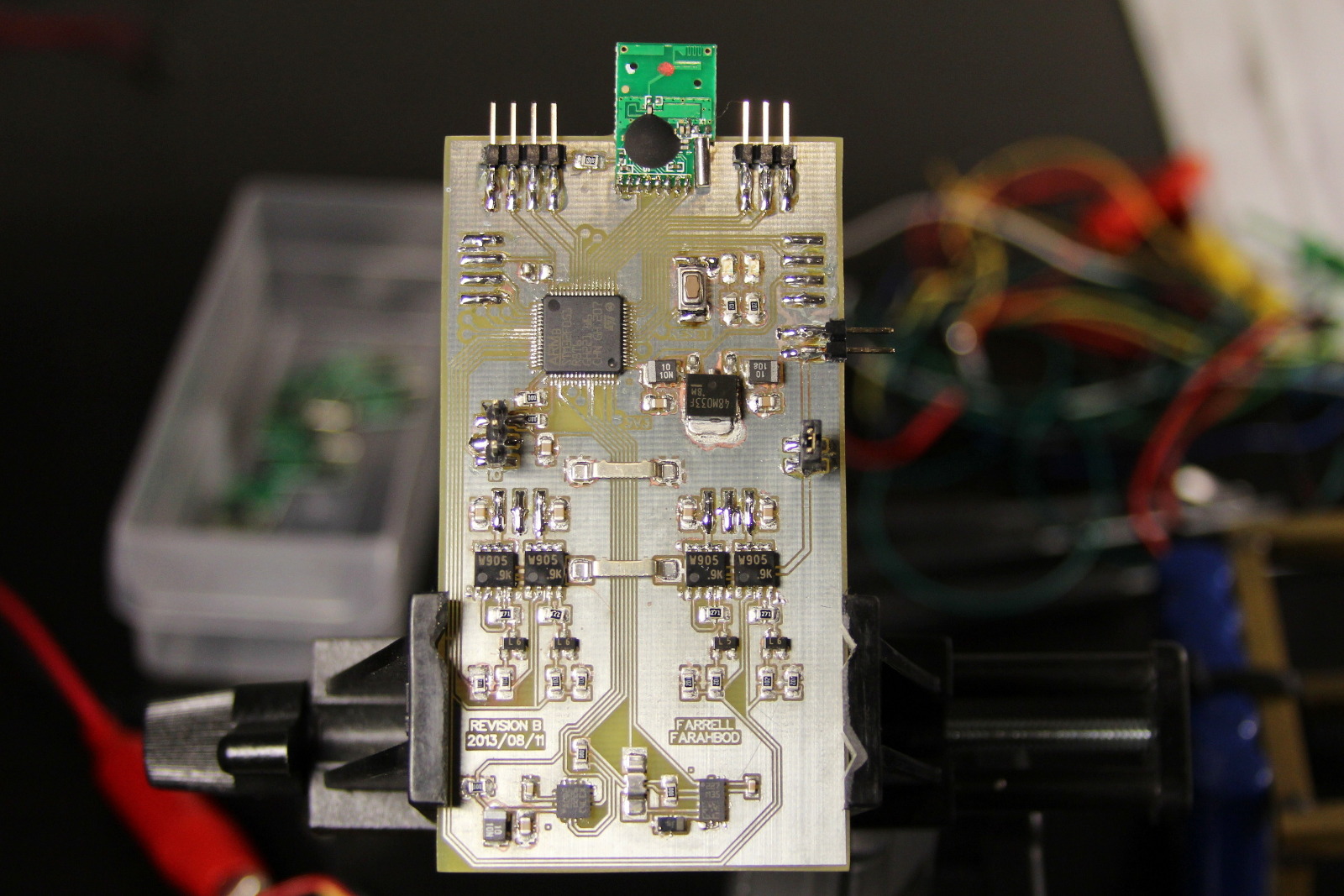
To clean up the mess I designed and etched a PCB specifically for this robot. I incorporated dual H-Bridges on the PCB to give better control over the motors. Previously I had just generated servo signals and let the servos' PCBs control the motors. This mostly worked, but as the servo PCBs came up to temperature the signal center point would drift slightly. This meant that after about a minute of use the robot would effectively have a bit of steering and throttle applied.
I finished by designing and etching a PCB for the transmitter. That was shown in my earlier post about solder masks. A little tuning of the PID control loop brought everything together and I was done. I'll post the firmware in a few days after doing the last bits of clean up and documentation.
Using the RXTX Java Library

There are several libraries for Java that add support for serial ports, and a few months ago I settled on the RXTX library. Recently their web site disappeared and looking back at the code releases it became apparent that development halted a couple years ago. A few groups are still maintaining packages for the library, and people still use it, so I'll post my installation and helloworld notes.

Archive.org has a mirror of the old RXTX web site:
http://web.archive.org/web/20130117073055/http://rxtx.qbang.org/wiki/index.php/Main_Page

Installation

A Linux installation is trivial since RXTX is in the package repositories:

$ sudo apt-get install librxtx-java

An OS X installation is not so easy. Binaries are available from the official RXTX web site, but they are outdated and not compatible with modern versions of OS X. Compiling from source isn't hard, but there are a few changes that must be made along the way. Assuming you already have Java installed, you'll need to install libtool via Homebrew because the stock libtool supplied by Apple won't work.

Install Homebrew, then install libtool:

$ ruby -e "$(curl -fsSL https://raw.github.com/Homebrew/homebrew/go/install)" $ brew install libtool

Download the RXTX 2.2pre2 source and extract the archive. Then edit the configure file, modifying the JAVAINCLUDEDIR line:

Before: JAVAINCLUDEDIR=$JPATH/../../../Headers After: JAVAINCLUDEDIR=/System/Library/Frameworks/JavaVM.framework/Versions/A/Headers

(Make sure the path is valid. It may be different if you installed a different version or distribution of Java than I did.)

Run the configure script:

$ ./configure

Assuming that completed successfully, edit the LIBTOOLC line in the Makefile:

Before: LIBTOOLC = $(GLIBTOOL) --mode=compile $(CC) $(INCLUDES) $(CPPFLAGS) $(CFLAGS) $(VERBOSE_IOEXCEPTIONS) -c After: LIBTOOLC = $(GLIBTOOL) --tag=CC --mode=compile $(CC) $(INCLUDES) $(CPPFLAGS) $(CFLAGS) $(VERBOSE_IOEXCEPTIONS) -c

Compile and copy the resulting files into place:

$ make $ cp RXTXcomm.jar /Library/Java/Extensions/ $ cp i386-apple-darwin13.0.0/librxtxSerial.jnilib /Library/Java/Extensions/

Simple Example

The official RXTX wiki has some good examples. Below is an adaption I made with the explicit goal of being short and to the point. See the official examples for better error handling and other use cases.

The following class has two methods: Use getSerialPorts() to get a List<String> of detected serial ports. Then call establishConnection() to make a connection and create the input/output streams. For example, calling establishConnection("/dev/ttyUSB0", 9600); would connect to /dev/ttyUSB0 with a 9600 8N1 configuration. I also setup a Scanner to make it trivial to parse incoming data.

import gnu.io.*; import java.io.*; import java.util.ArrayList; import java.util.Enumeration; import java.util.List; import java.util.Scanner; public class SerialTest { private SerialPort rs232; private OutputStream rs232ostream; private InputStream rs232istream; private Scanner rs232scanner; public List getSerialPorts() { List list = new ArrayList(); @SuppressWarnings("unchecked") Enumeration ports = CommPortIdentifier.getPortIdentifiers(); while(ports.hasMoreElements()) { CommPortIdentifier port = ports.nextElement(); if(port.getPortType() == CommPortIdentifier.PORT_SERIAL) list.add(port.getName()); } return list; } public Boolean establishConnection(String port, int baudRate) { try { rs232 = (SerialPort) CommPortIdentifier.getPortIdentifier(port).open("Test App", 2000); // app name, timeout rs232.setSerialPortParams(baudRate, SerialPort.DATABITS_8, SerialPort.STOPBITS_1, SerialPort.PARITY_NONE); rs232ostream = rs232.getOutputStream(); rs232istream = rs232.getInputStream(); rs232scanner = new Scanner(rs232istream); System.out.println("Connected to " + port + " at " + baudRate + " baud."); return true; } catch (Exception e) { System.err.println("Error setting up serial communications with port " + port + "."); System.err.println(e.getClass().toString()); return false; } } // add code that makes use of the input or output streams after calling establishConnection() }

Macro Lens Extension Tubes

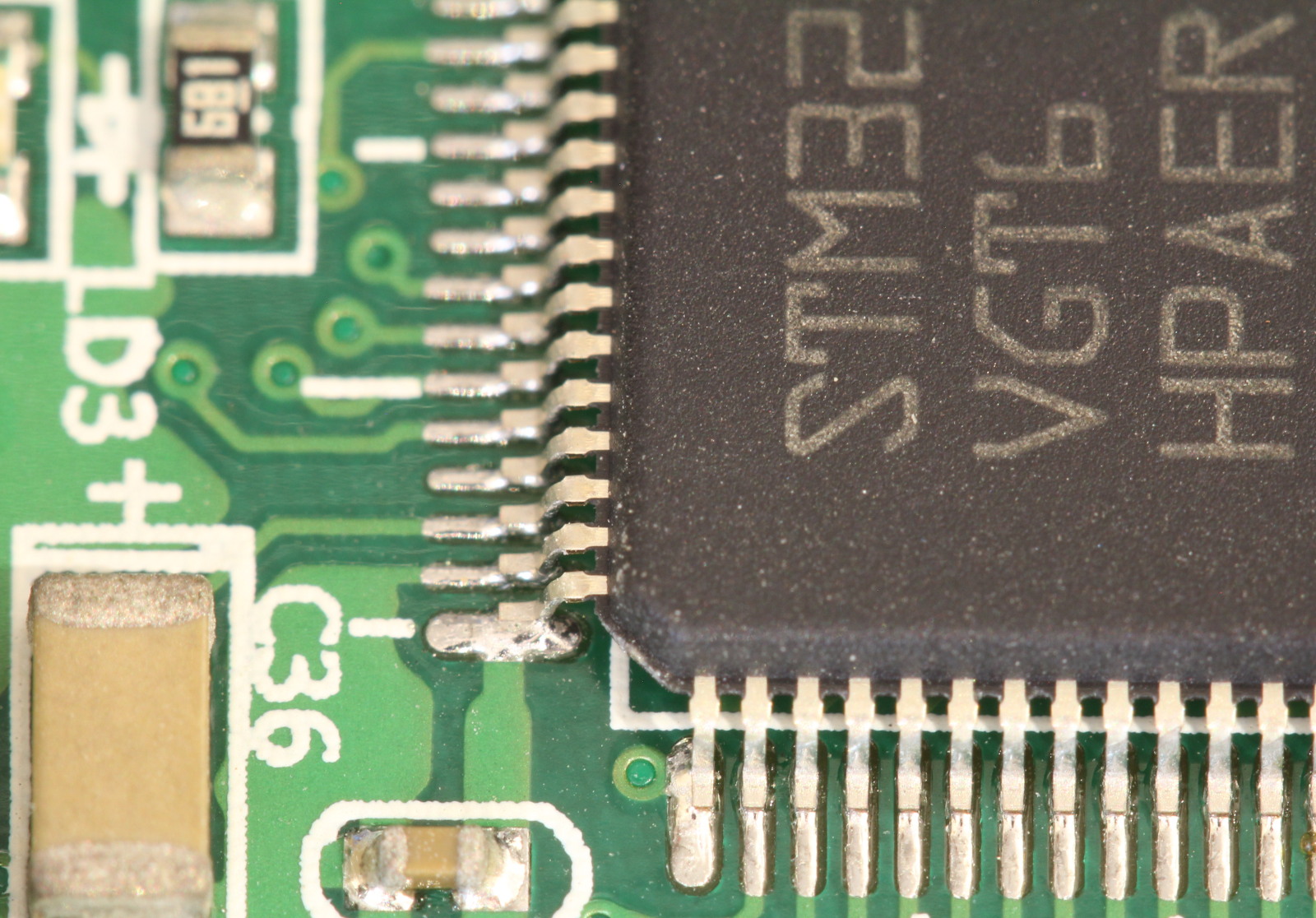
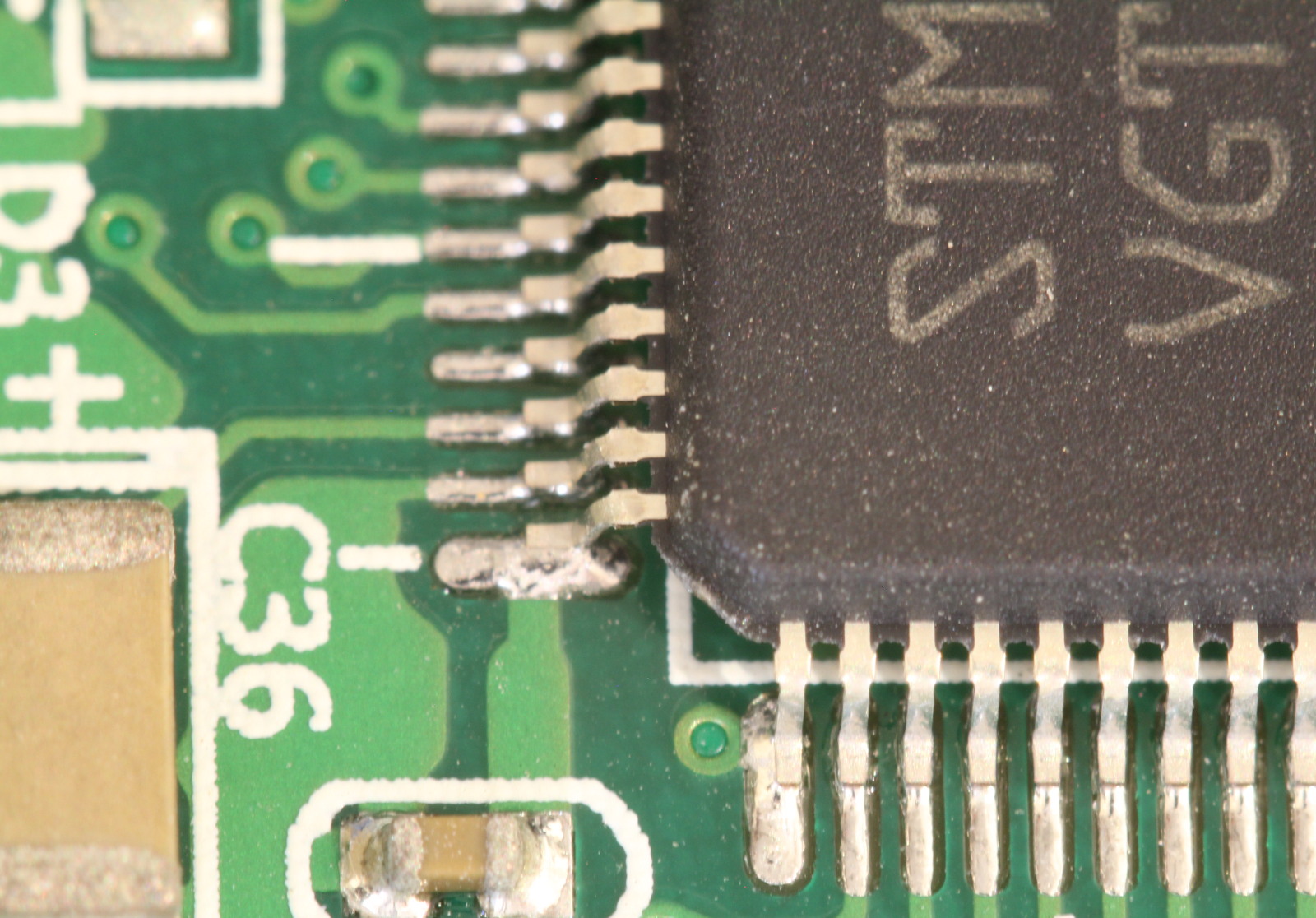
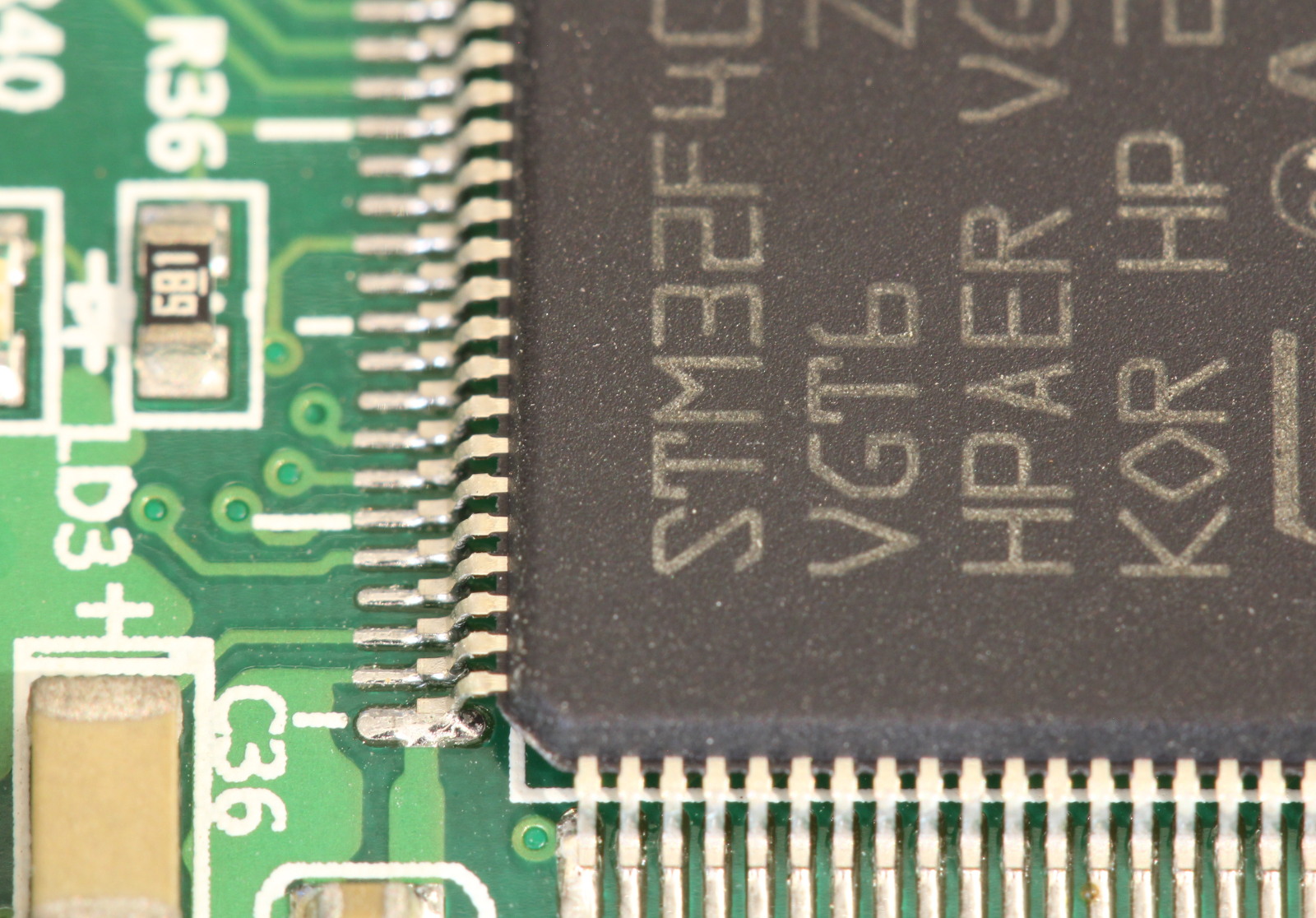
My Canon 100mm f/2.8 macro lens takes some great photos but sometimes I want a nearly microscope level of magnification. I found a set of extension tubes that come as a three pack: 13mm, 21mm and 31mm. They can be used individually or stacked. My first shots are below.

100mm lens without any extension tubes:

100mm lens with 13mm extension:

100mm lens with 13mm and 21mm extensions:

100mm lens with 13mm, 21mm and 31mm extensions:

DIY PCBs with Solder Mask

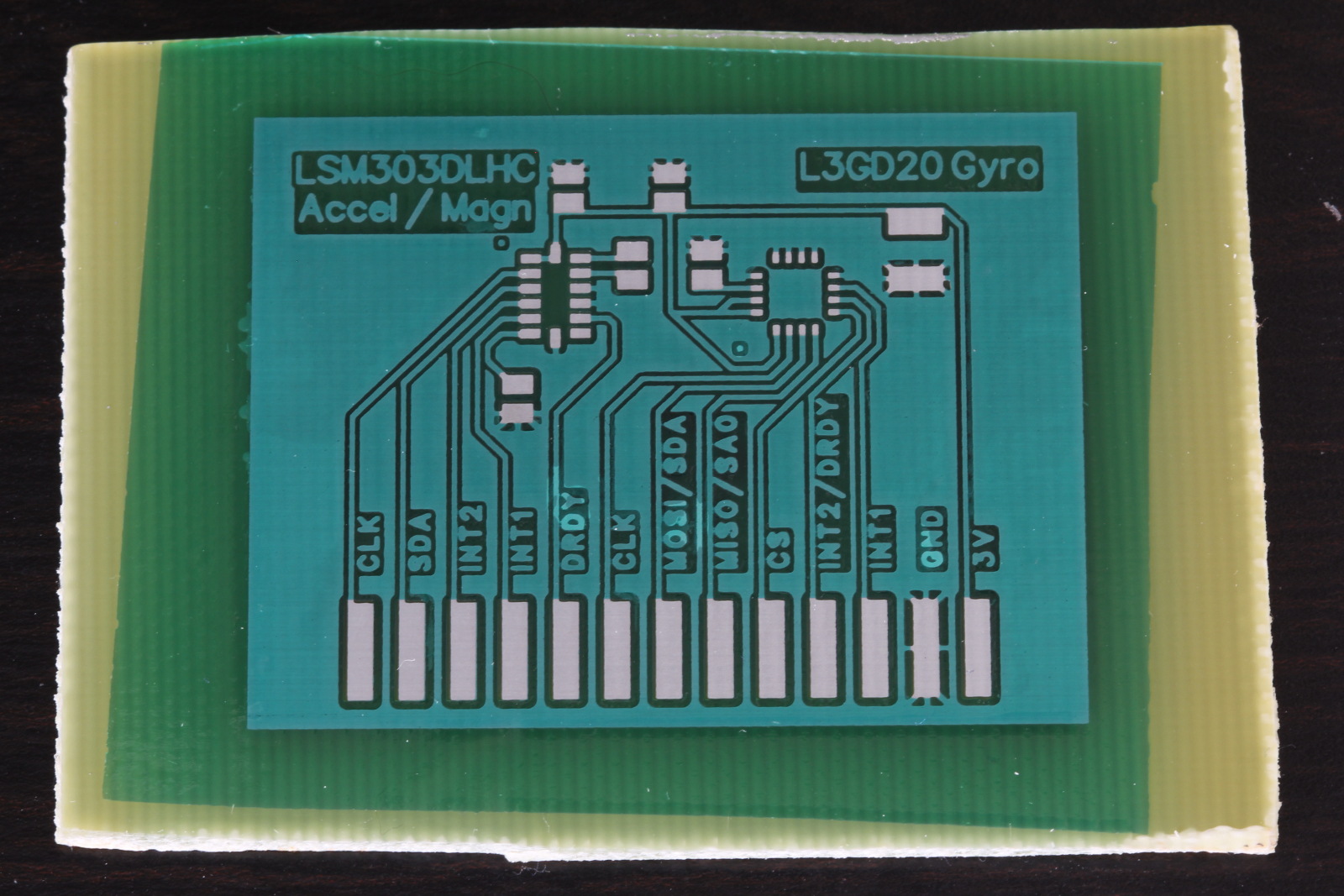
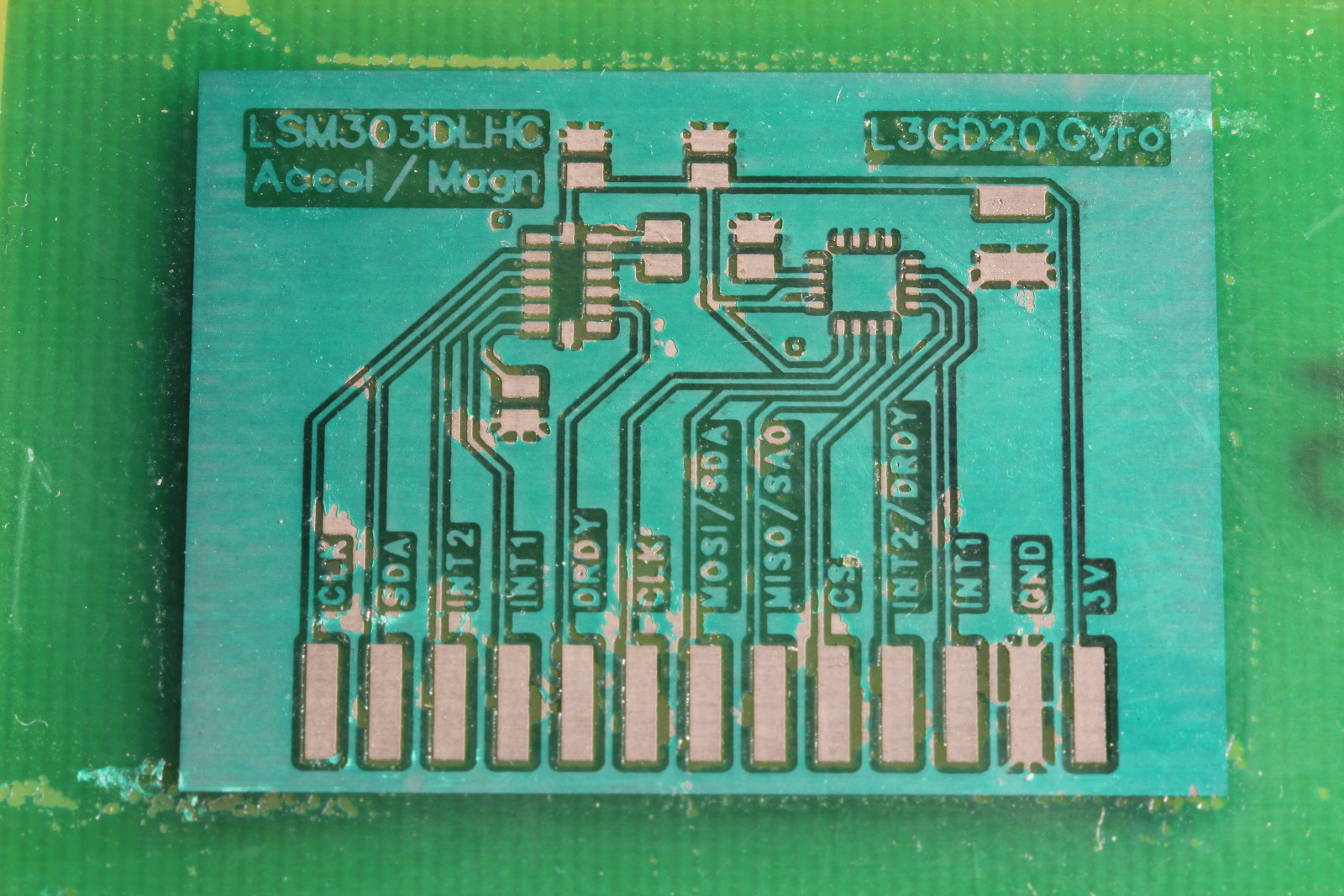
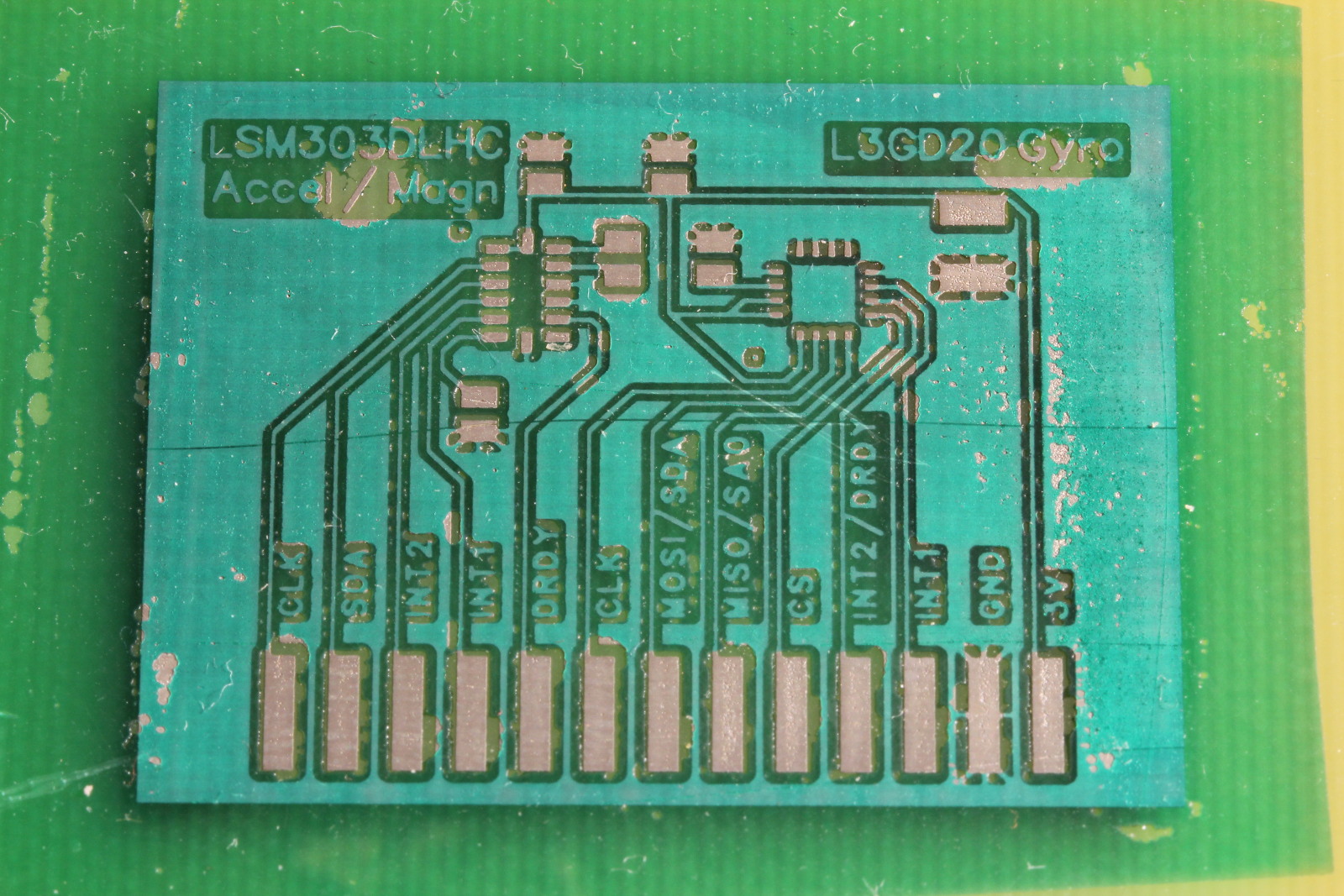
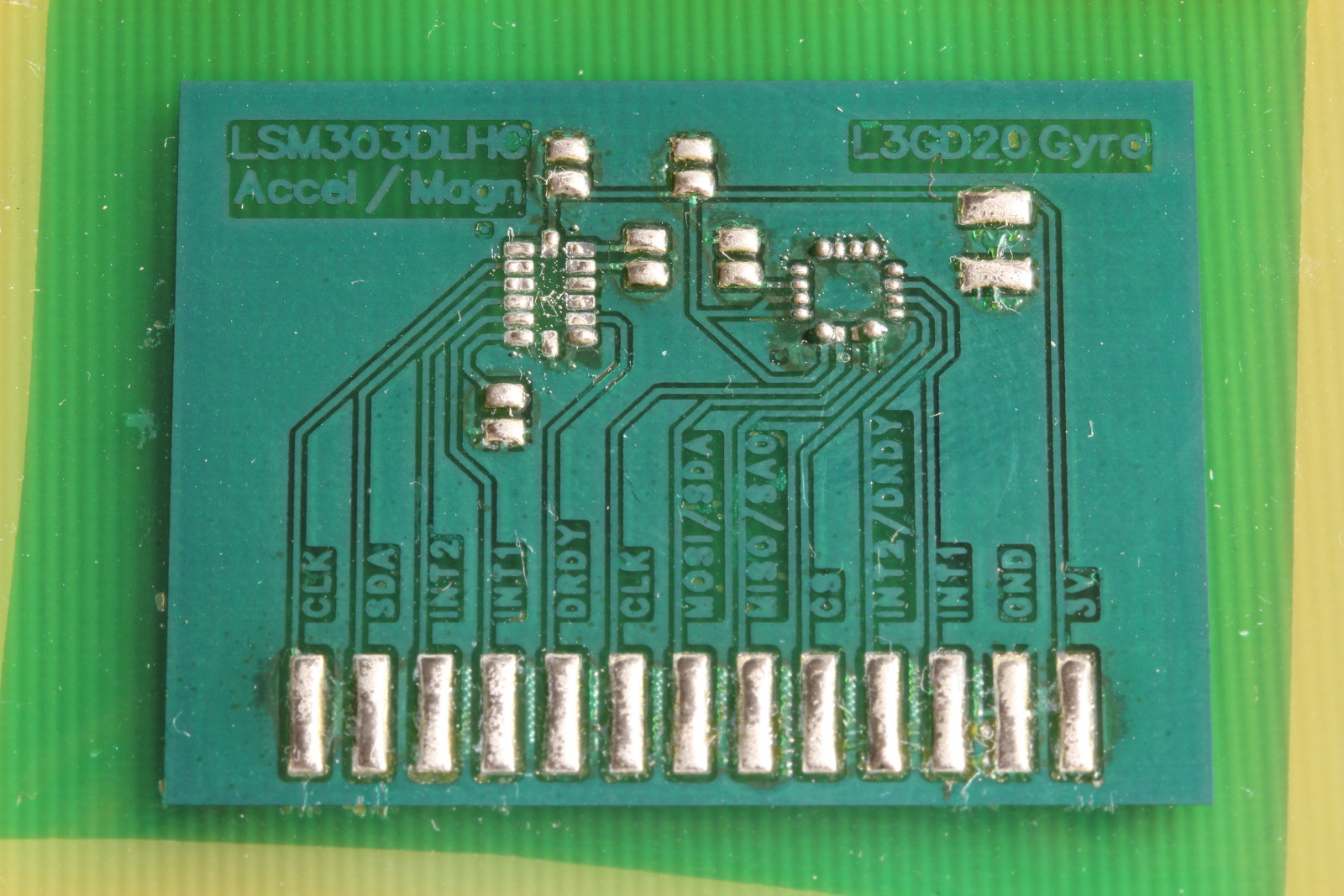
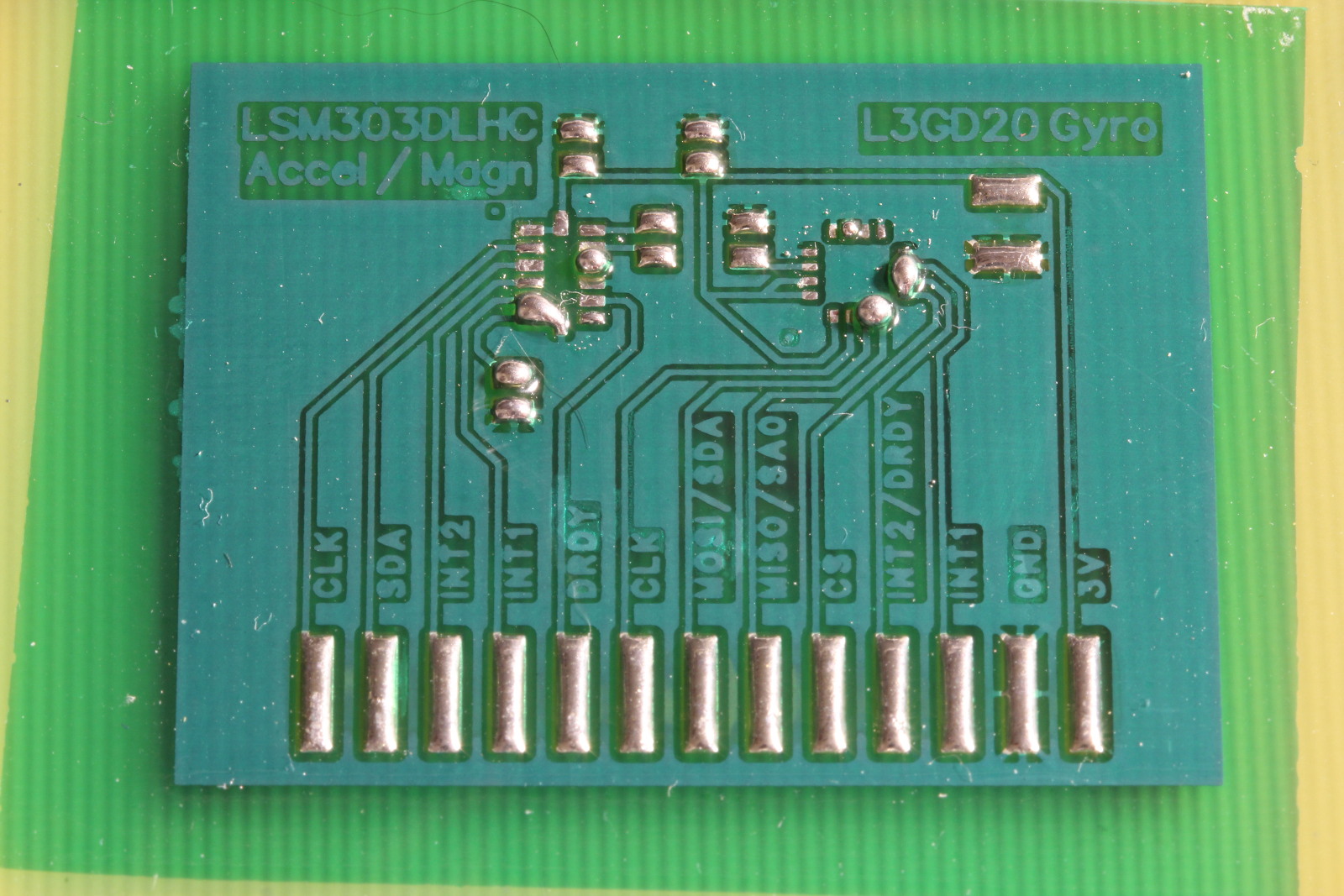
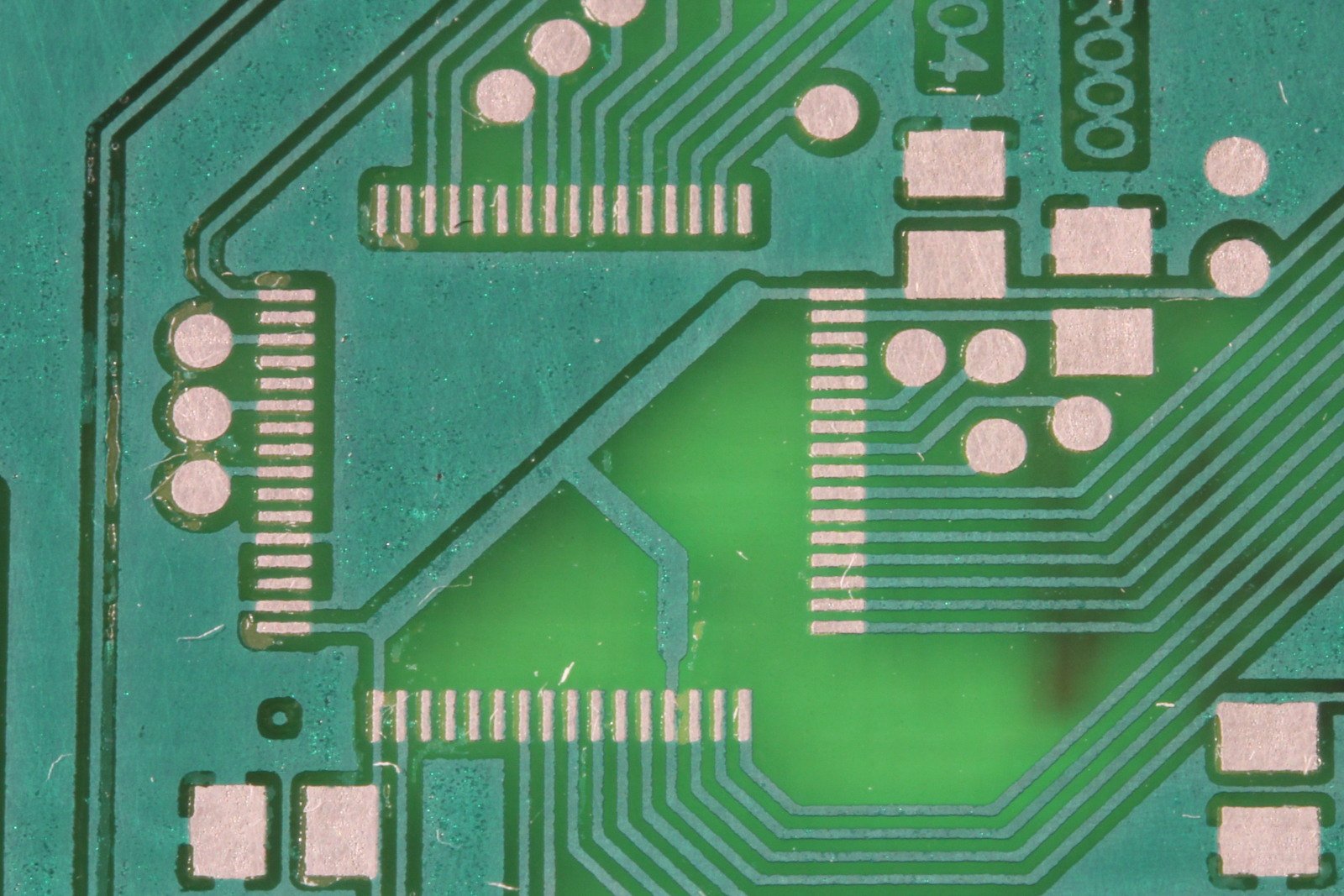
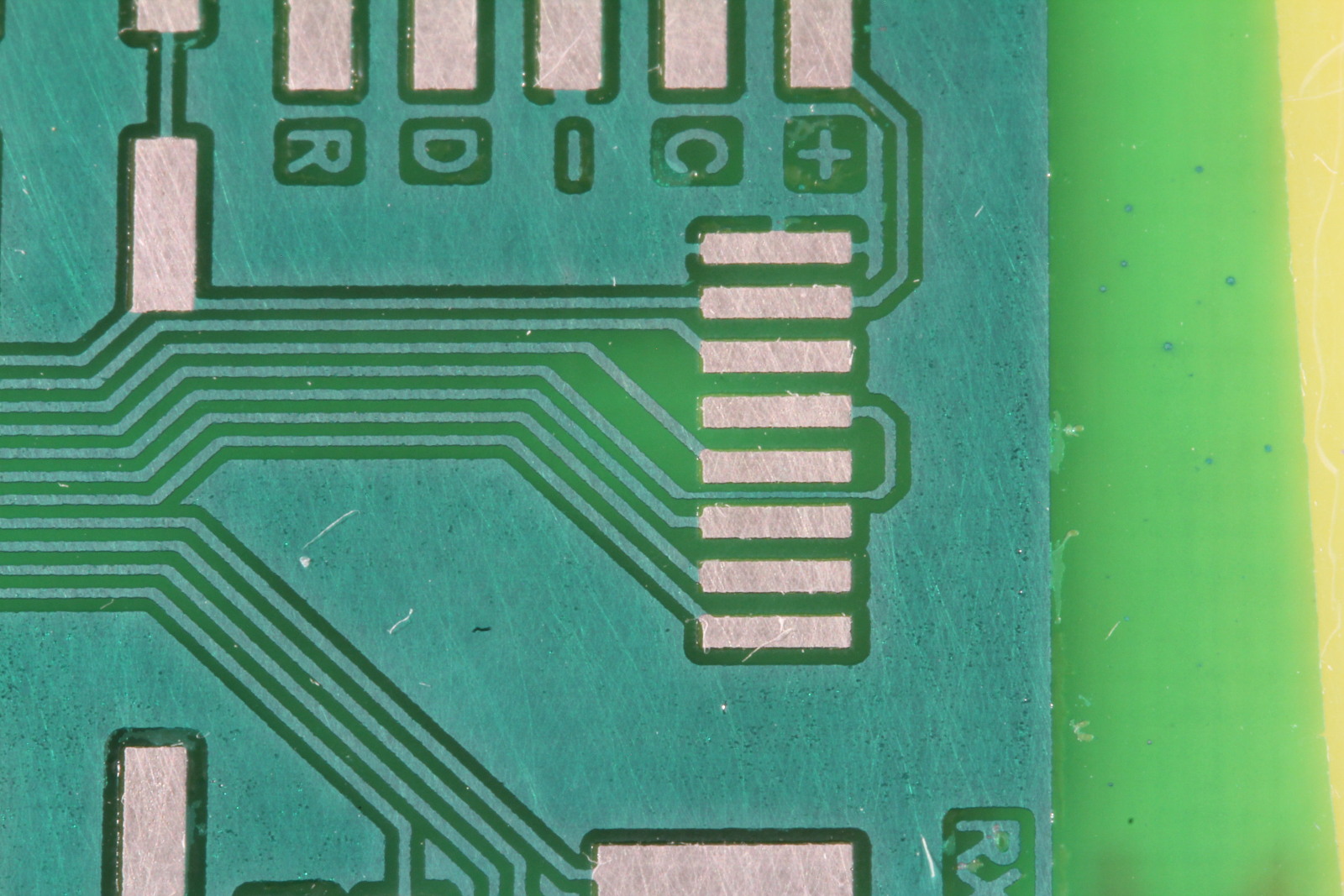
I’ve managed to get decent solder masks on my home made PCBs. The dry film variety has worked best for me, with liquid masks being difficult to apply consistently. To perfect my process I used a small gyro / accelerometer / magnetometer breakout PCB that I designed around a year ago. Here’s the end result:

It’s not perfect — there are some spots with delamination — but the result is usable and very functional. It works just like the professional stuff. It tolerates abuse from an iron at 375C without damage. It sticks well and doesn’t scratch easily.

It took about eight failures, due to various problems, before I got to this point. I’m using Dynamask 5000 Dry Film Solder Mask. It’s sold in giant rolls, but small amounts can be purchased through eBay (search for “dry film solder mask”) for about $7 per square foot.

My process:

  1. Etch and tin plate the PCB (per my earlier blog post, but don’t sand the PCB to it’s final shape until after the solder mask is done.)
  2. Cut a piece of solder mask to size. It should be big enough to cover all of the copper, but not hang out past the edge of the PCB. If it hangs out, it can gum up the laminator.
  3. Make a 10% alcohol solution in water. I used SLX Denatured Alcohol from a local hardware store. Wet the entire surface of your PCB with it, using a q-tip. Don’t flood the board, but there needs to be a film over everything. This helps prevent air bubbles when you laminate.
  4. Peel the protective film off of the solder mask, place it on the PCB, and press the leading edge onto the PCB so it won’t slip around. Run it through the laminator at a low temperature two or three times.
  5. Let it sit for 30 minutes.
  6. Expose. With my UV lamp from MG Chemicals, this takes 10 minutes.
  7. Let it sit for 30 minutes.
  8. Remove the other protective film.
  9. Develop with half a gram of sodium carbonate per 12oz of water. It takes about five minutes to develop. Gently brush to remove the unexposed mask.
  10. Expose for 30 minutes.
  11. Bake at 145C for 30 minutes.

As I mentioned earlier, it took many attempts before I got a useable mask. Here are the problems I encountered:

Bubbles under the mask. If you follow the datasheet you’re supposed to use a vacuum laminator, but that’s outside the realm of a hobbyist. Little pockets of air will get trapped when using a hot roll laminator or an iron. I first tried using water to prevent air pockets, but it didn’t help much. Adding a bit of alcohol helped, perhaps the alcohol slightly “melts” into the uncured solder mask. Bubbles still occur, but there are fewer of them and they don’t usually break when you develop the mask. Without the alcohol your bubbles will break and yield an ugly surface:

Blotchy or satin sheen on the mask. This happens when the developer is too strong. I found 1 gram of sodium carbonate per 12oz of water to be too strong, and half a gram to be just right. This might change based on temperature — my stuff was all at around 70F.

Don’t forget to bake the board at the end. The final cure requires both UV exposure and the baking process, otherwise the mask will not fully harden. Even if you will use solder paste and reflow the board, you should still bake the board before doing that. You can easily gouge the mask while placing parts with tweezers.

I noticed that the flux in Chipquik’s SMD291SNL lead-free paste (Sn 96.5 / 3 Ag / 0.5 Cu) was very aggressive and would creep under the solder mask. Even without a solder mask, their flux will do a little damage to tinned copper. I have not had any problems with other solder pastes and I currently use Kester EP256 leaded paste.

Chipquik paste:

Kester paste:

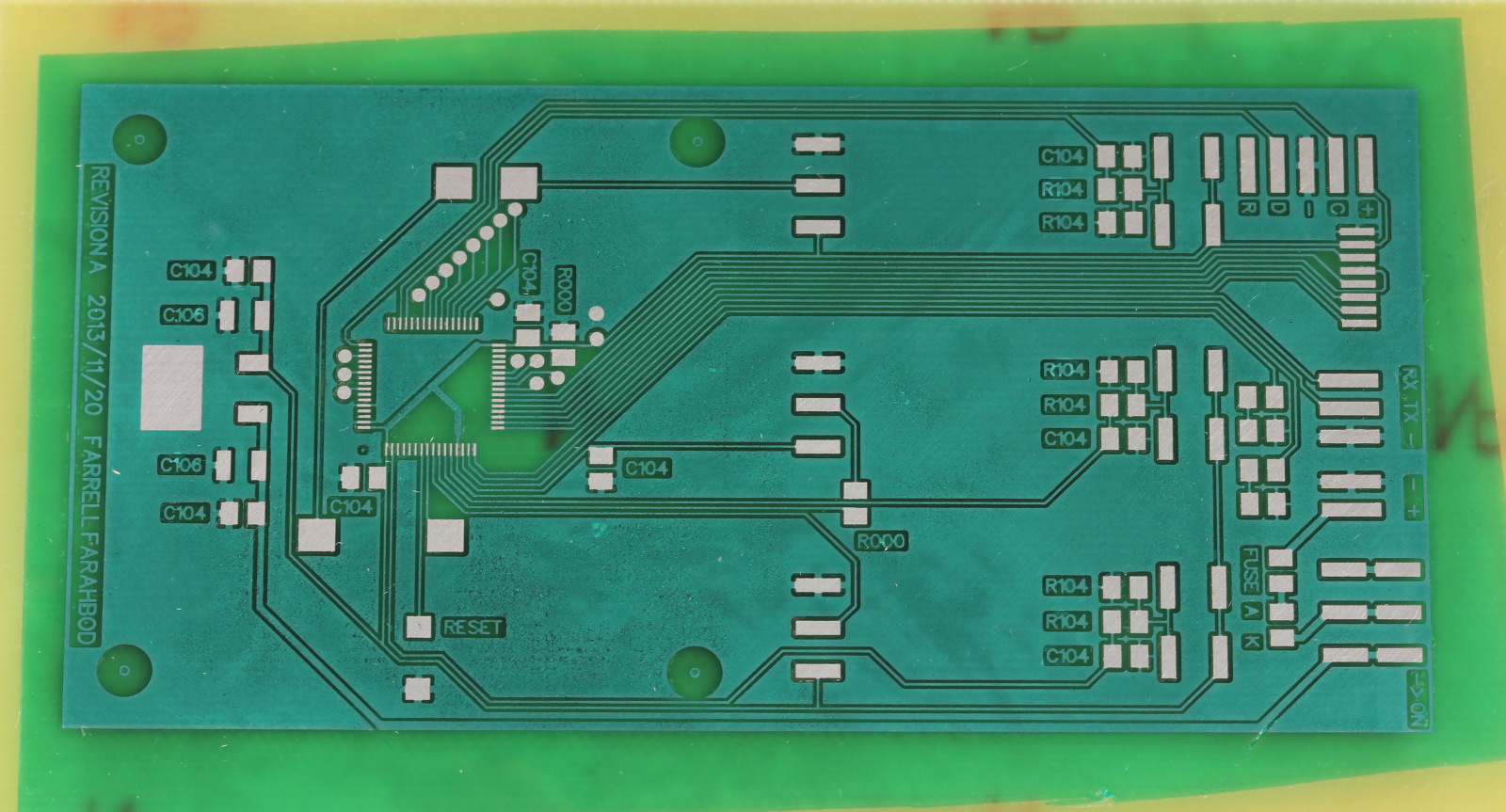
After getting the process figured out I decided to make a simple 2.4GHz transmitter for use with my robots. The PCB is below. The ugly looking ground fill is due to an overexposed photomask which allowed the etchant to slightly damage the surface.

It turned out well. Imperfections only appear if you look up close.

I think the finished project turned out very well.

Working with the HC-06 Bluetooth Serial Module

I recently got a BT2S Bluetooth Serial adapter. It's easy to use and the range is good when you consider that bluetooth is intentionally short range. I can have the BT2S about 40 feet away, with three walls between it and my computer, and still get good performance. The BT2S is an HC-06 Slave Mode module mounted on a breakout board with an LED and some other SMDs.

The bluetooth adapters can be purchased for around $7 from China or around $10 locally.

My adapter came with no documentation, so here are my notes:

1. I powered the module with 3V, but most web sites claim it can handle up to 5V.

2a. The default configuration is 9600 8N1, device name = HC-06, PIN = 1234. If you don't want to change any of this you can skip the configuration steps and use the device as-is.

2b. Changing the configuration requires a USB Serial ("an FTDI") adapter. As usual, cross the TX/RX lines. Configuration must be done when the BT2S is NOT paired with a bluetooth device.

2c. In Linux, connect to the FTDI with $ screen /dev/ttyUSB0 9600

2d. Commands are simple ASCII text, with no need for a newline or carriage return. Each complete command must be entered in less than one second, so type them out in a text editor, then paste them into screen. The command will not be echoed back, but a response will be sent.

2e. There are a handful of commands to set the device name, PIN, baud rate and parity. Settings are stored in non-volatile memory. Erich Styger has a nice table of the commands and responses on his blog: http://mcuoneclipse.com/2013/06/19/using-the-hc-06-bluetooth-module/

3. Using the device is straight forward. Connect the TX and RX lines as needed, then power it up. The red LED blinks when not paired, and will be solid red when paired and in use. Pair the device, then use screen (or cat or whatever) and treat it like a regular serial device. There is no need to specify the baud rate as that seems to be handled by the bluetooth drivers.

In Linux the device will be /dev/rfcomm0, and in Mac OS the device will be /dev/tty.DeviceName-DevB (where DeviceName is the bluetooth device name, "HC-06" by default)

I noticed that the BT2S paired perfectly with the built-in bluetooth of my MBP, but with Linux in a VM it would pair but fail to make the /dev/rfcomm0 device. Using a bluetooth dongle had the same effect. I was able to get it working by doing the following:

1. Determine the bluetooth device id with $ sudo hcitool scan

2. Create the /dev/rfcomm0 device with $ sudo rfcomm bind /dev/rfcomm0 20:13:11:05:12:02 1
(replace 20:13:11:05:12:02 with your device ID if it's different)

3. Optionally change permissions with $ sudo chmod 777 /dev/rfcomm0

The BT2S also works with my Nexus 4 phone. I've tried a few different bluetooth terminal apps, and they all pair and work fine. I've noticed that at 9600 baud everything works perfectly, but at 115200 baud the apps get very slow and errors occur about once per second. I'm not sure if the problem is with the apps, the Android bluetooth stack, or the phone itself. Regardless, the 115200 baud rate works fine with Linux and Mac OS.

< Prev  5  Next >